
Set up Autoqueue in about two minutes
One extension, one key, one Connect button. You will need an Autoqueue account first: your access key lives on your dashboard, and new members get it right after signing up. Email alerts work with no extension at all; the extension is what opens the store tab for you on our Auto-Queue plan.
Install and connect
Chrome
- Open Autoqueue on the Chrome Web Store and click "Add to Chrome".
- Sign in to your Autoqueue dashboard and copy your access key.
- Click the puzzle-piece Extensions button in the Chrome toolbar, then the three-dot menu next to Autoqueue and choose "Options". (Or open chrome://extensions, find Autoqueue, and click "Details", then "Extension options".)
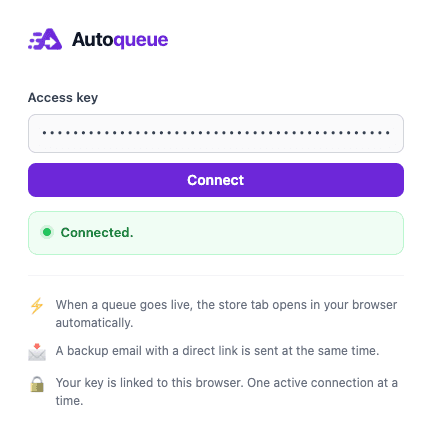
- Paste your key into the "Access key" field and click "Connect". When the status reads "Connected." you are set.
Firefox
- Open Autoqueue on Firefox Add-ons and click "Add to Firefox".
- Sign in to your Autoqueue dashboard and copy your access key.
- Click the Extensions button in the Firefox toolbar, then the gear next to Autoqueue and choose "Manage Extension". Open the "Preferences" tab. (Or go to about:addons and pick Autoqueue.)
- Paste your key into the "Access key" field and click "Connect". When the status reads "Connected." you are set.
Safari
- Get Autoqueue on the Mac App Store and open the app once. It explains the single setup step and can take you straight to Safari's settings.
- Sign in to your Autoqueue dashboard and copy your access key.
- In Safari, choose Safari > Settings > Extensions, turn on Autoqueue, and allow it when Safari asks. Select Autoqueue in that list to open its settings.
- Paste your key into the "Access key" field and click "Connect". When the status reads "Connected." you are set.
This is the whole interface. Once the status reads "Connected." you are done: the extension runs quietly in the background from then on. Keep that browser running (minimized is fine) on an awake computer and the store tab opens the moment a watched drop fires.
Tune it from your dashboard
Every setting below is self-service on your dashboard. No support ticket needed.
Tab style
The default opens available product pages assigned or confidently matched to the alert. An initial assigned batch can contain up to 8 pages, and a different product found while the same retailer event remains active may open once later. An automatic match may also keep the official store page when its safety checks require it. Prefer one browser tab for the whole retailer event? Pick "Open Official Store Page". This setting changes browser tabs only; email uses the best exact product match available. Changes apply within about a minute.
Your stores and card games
Pick your card games and your stores separately. Alerts fire only where the two overlap, so a store you do not shop never opens a tab or emails you.
Weekly recap
An optional once-a-week email: the drops that fired, plus subscriber-only detail on what is coming. It is entirely separate from live alerts. Toggle it under "Weekly recap".
Switch browser
Your access key lives in one browser at a time, so it cannot be shared. To move it, click "Switch browser" on the dashboard, then Connect from the browser you want. Your dashboard shows your remaining switches for the month.
Troubleshooting
The status says "Connected elsewhere."
Your key is active in another browser right now. A key works in exactly one browser at a time, and the newest connection wins. Close Autoqueue in the other browser, or simply keep using it there.
The status says "Key linked to another browser."
Your key is bound to a different browser install, for example after switching computers or reinstalling. Open your dashboard, click "Switch browser", then hit Connect again in the browser you want. Your dashboard shows your remaining switches for the month.
The status says "Key disabled or not approved for queue access."
Automatic tab opening requires an active Auto-Queue plan. Check your plan and key status on your dashboard; email alerts do not need the extension at all.
It disconnects for a moment after I save settings.
Saving preferences refreshes your connection so the new settings take effect. The extension reconnects on its own within about a minute; nothing to do.
A drop fired but no tab opened.
The tab-open needs the browser with the extension running on an awake computer; minimized or in the background is fine. Your alert email still arrives either way, so you can join from any device. If your browser comes back online while a drop is still fresh, Autoqueue opens it then.
Still stuck?
Reply to any Autoqueue email and a human reads it. Or start fresh from your dashboard.